
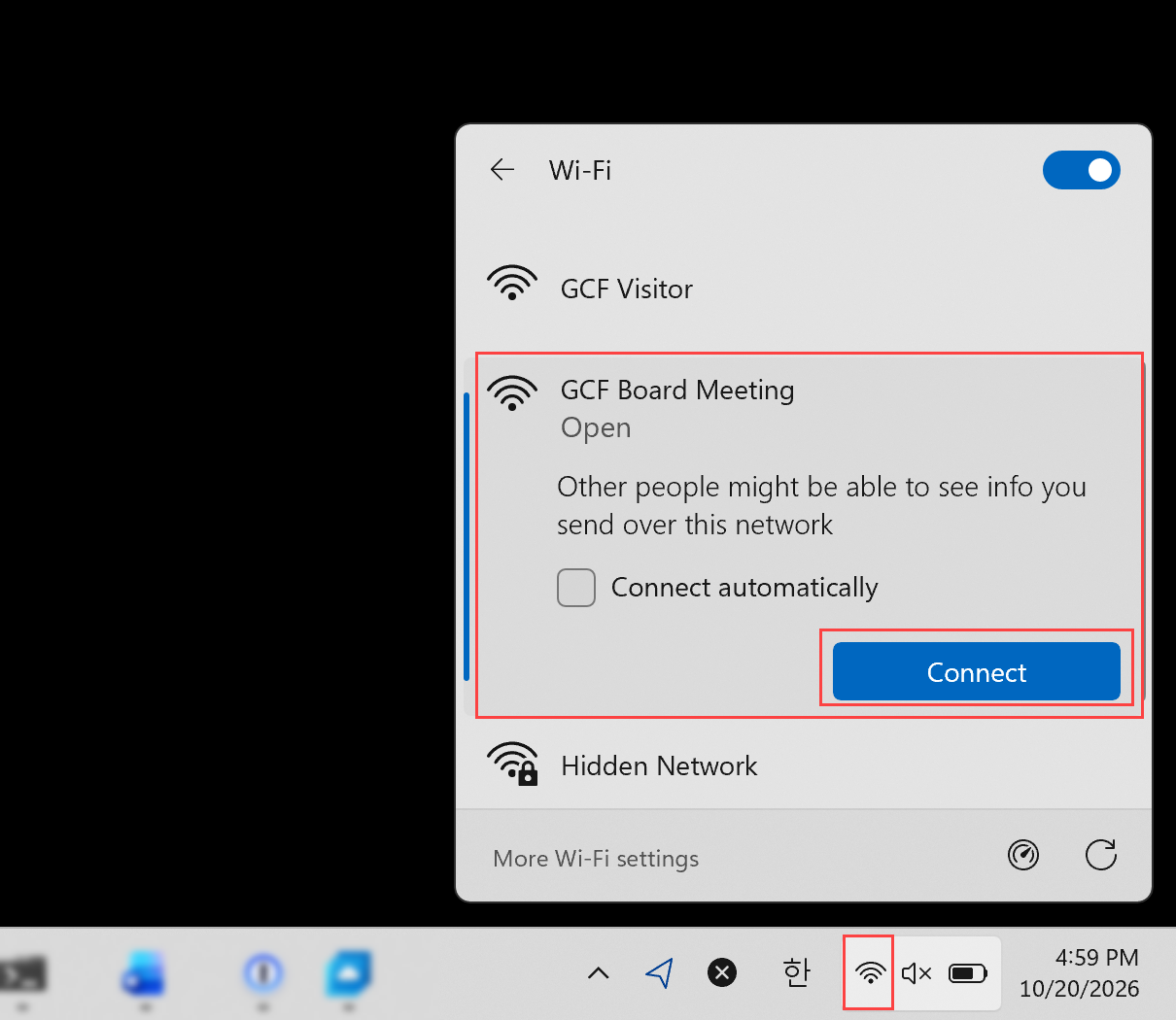
Click the Wi-Fi icon in the system tray at the bottom-right corner of the taskbar. In the Wi-Fi panel, click "GCF Board Meeting", then click "Connect".
Seeing "Open" or "Other people might be able to see info you send"? That's expected – the meeting network has no password so guests can join easily.
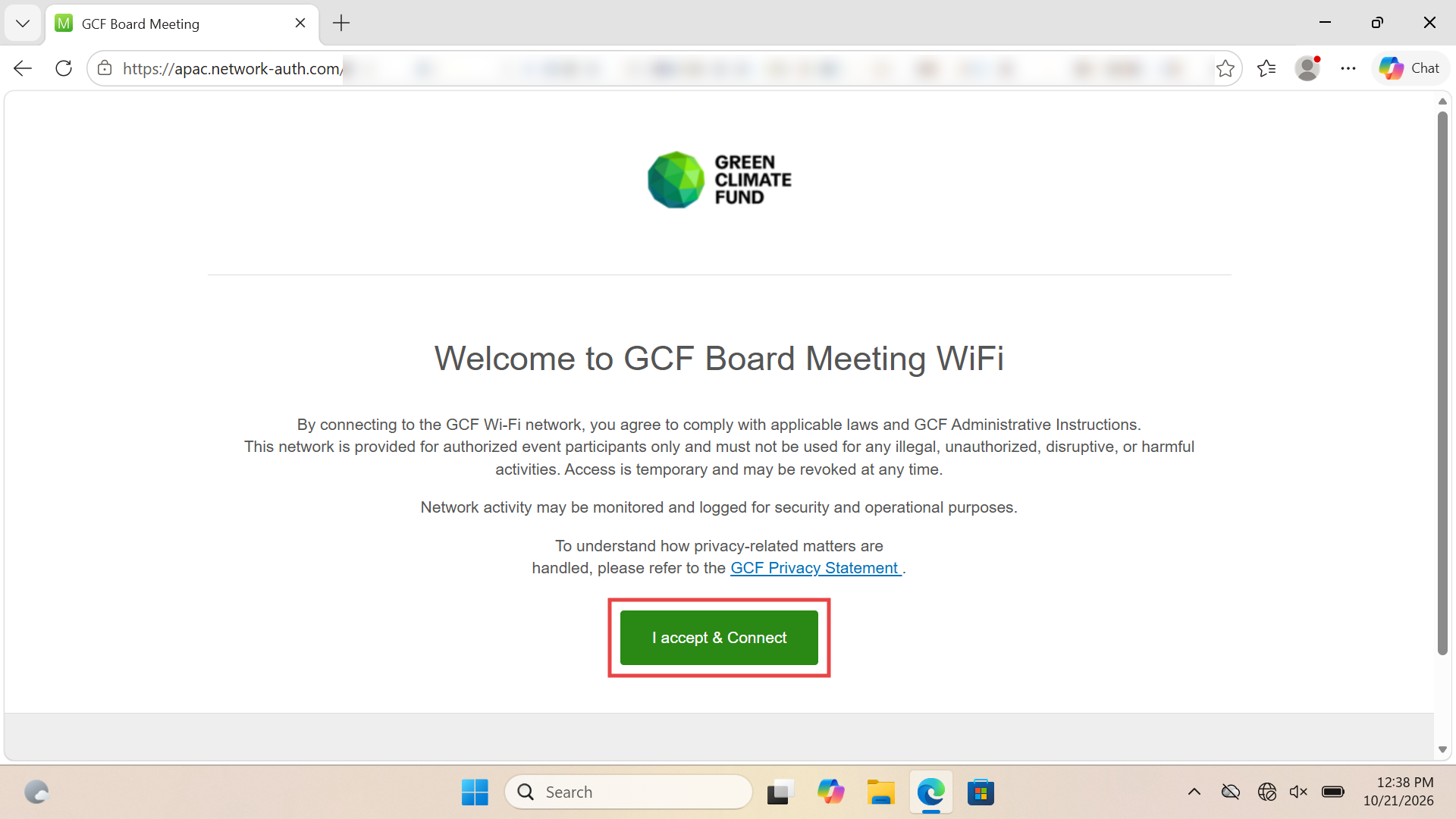
Your browser will open the GCF Board Meeting welcome page automatically. Read the terms of use, then click "I accept & Connect" – you are now connected and ready to browse!
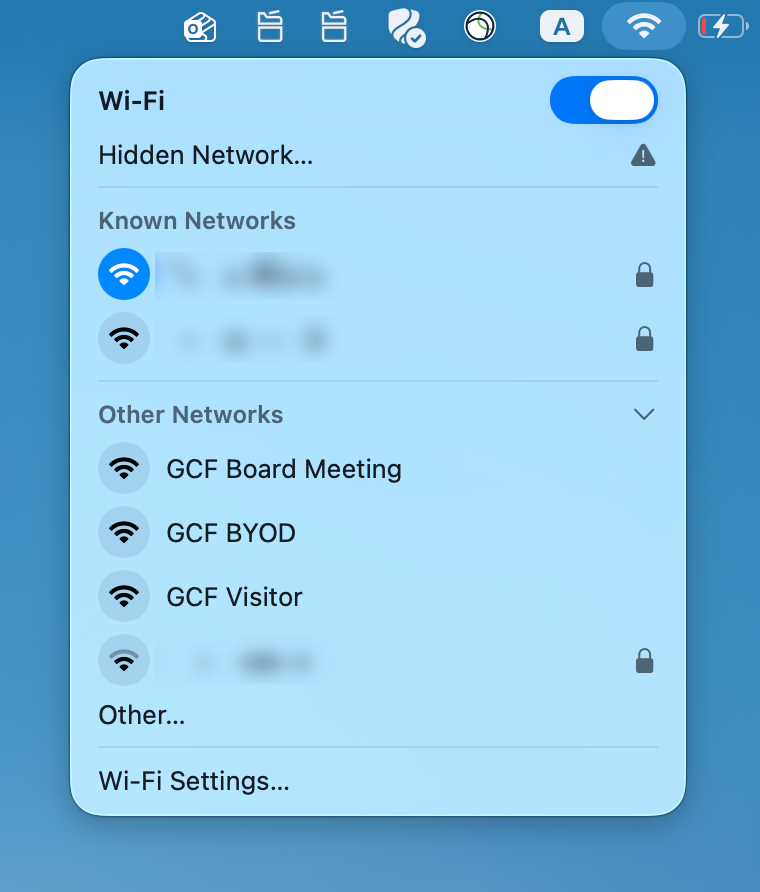
Click the Wi-Fi icon in the menu bar at the top-right of your screen. Under "Other Networks", click "GCF Board Meeting".
Check the name: pick "GCF Board Meeting" – not "GCF Visitor" or "GCF BYOD".
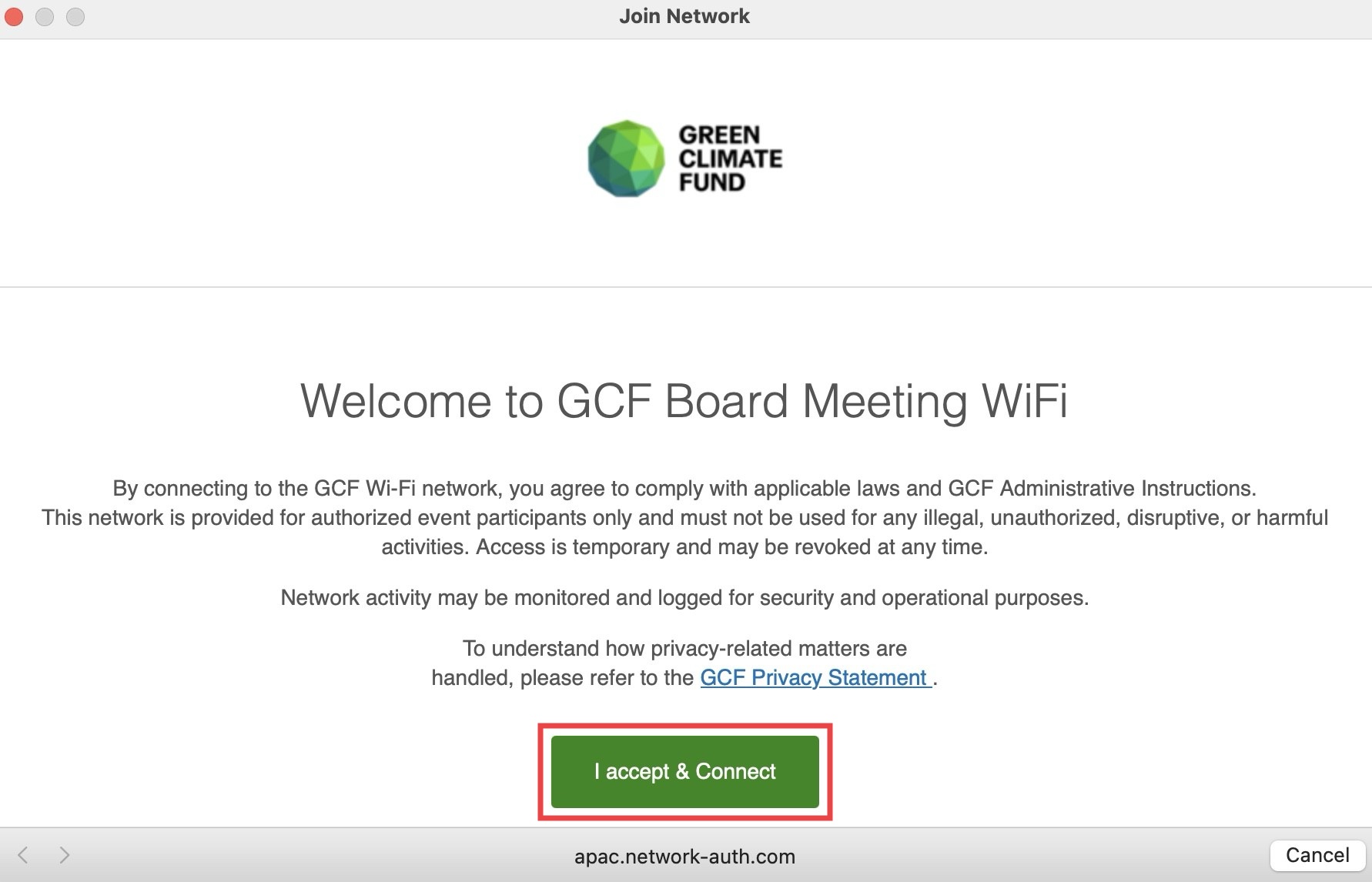
A "Join Network" window will appear automatically. Read the terms of use, then click "I accept & Connect" to proceed.
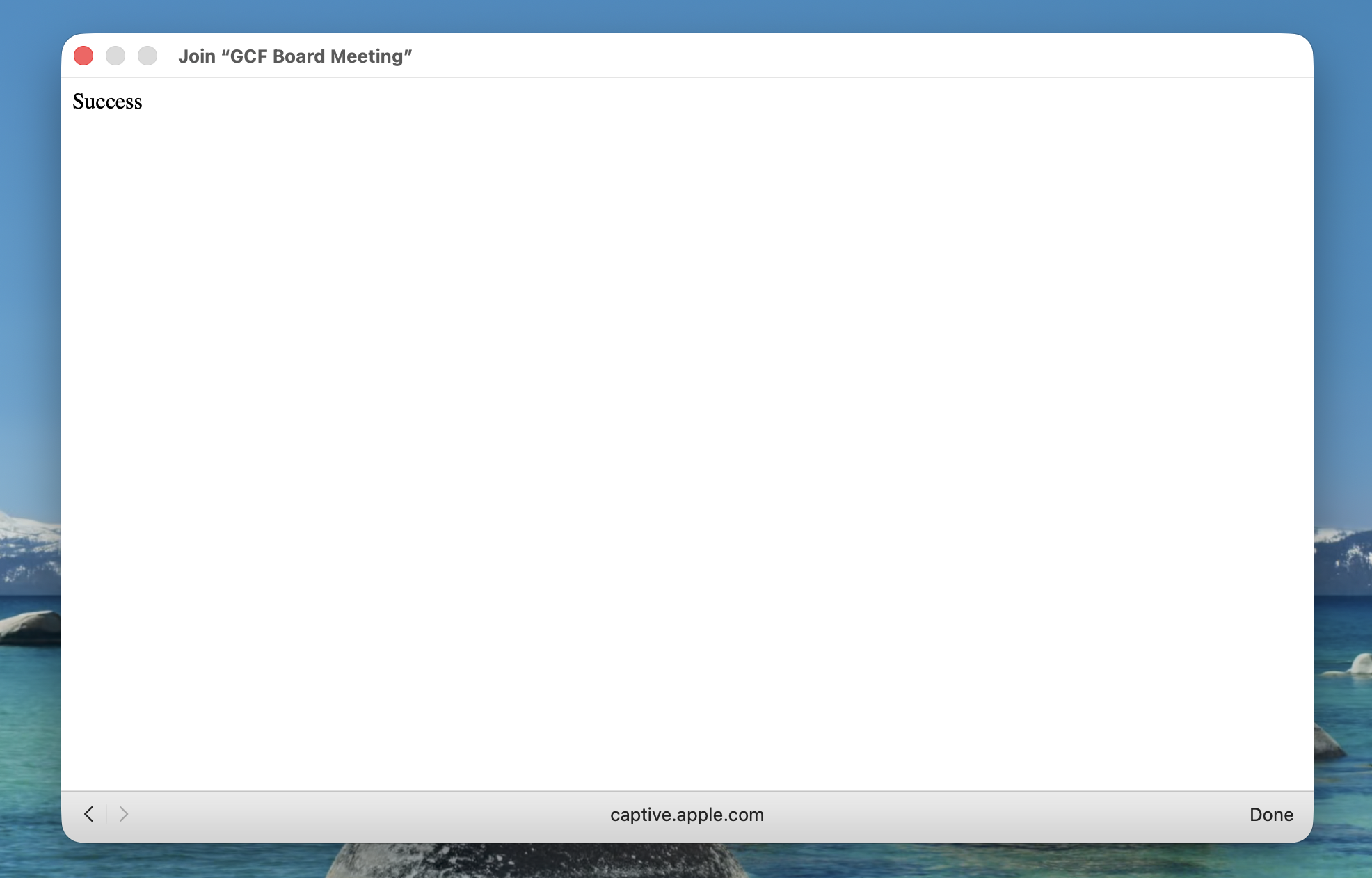
The window will display "Success" – confirming you are now connected. Click "Done" to close the window. You are ready to browse!
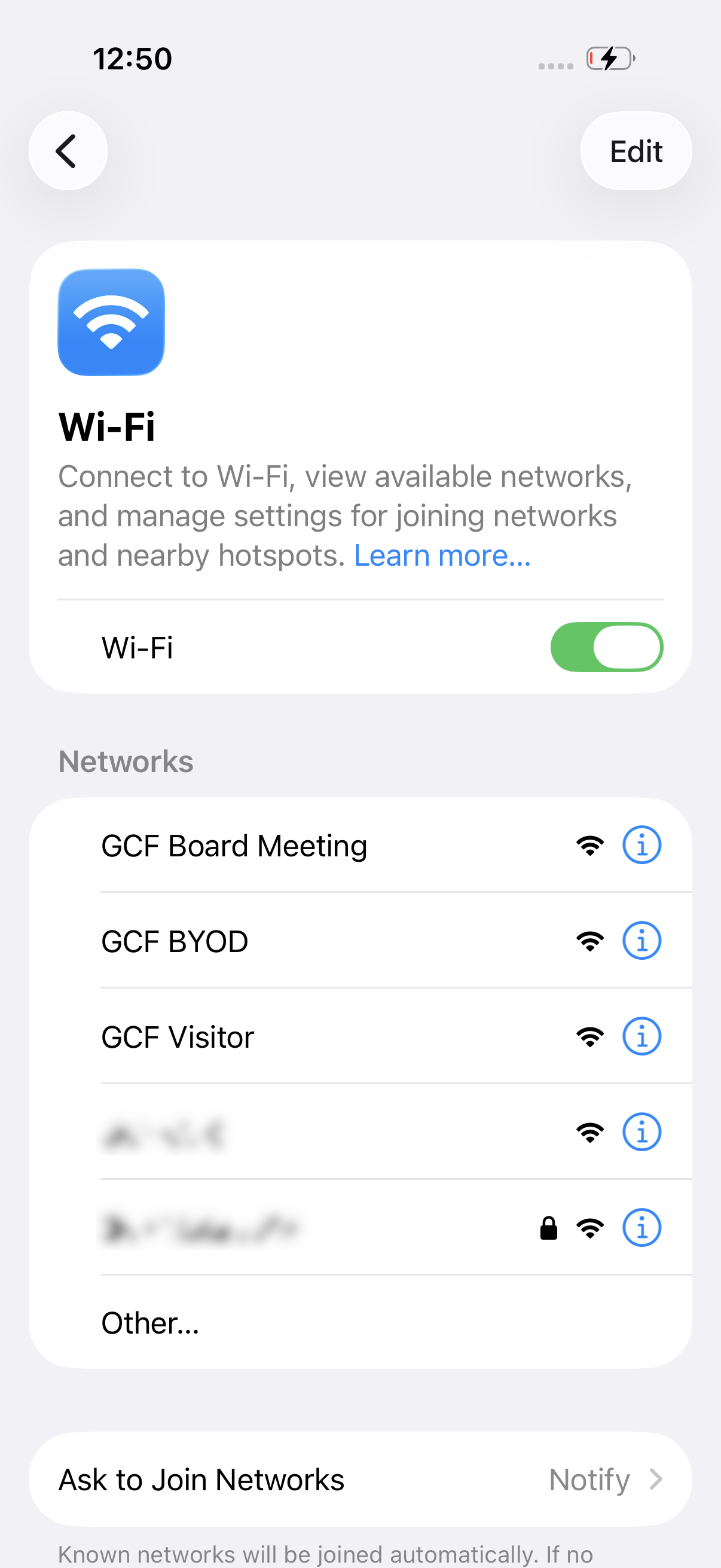
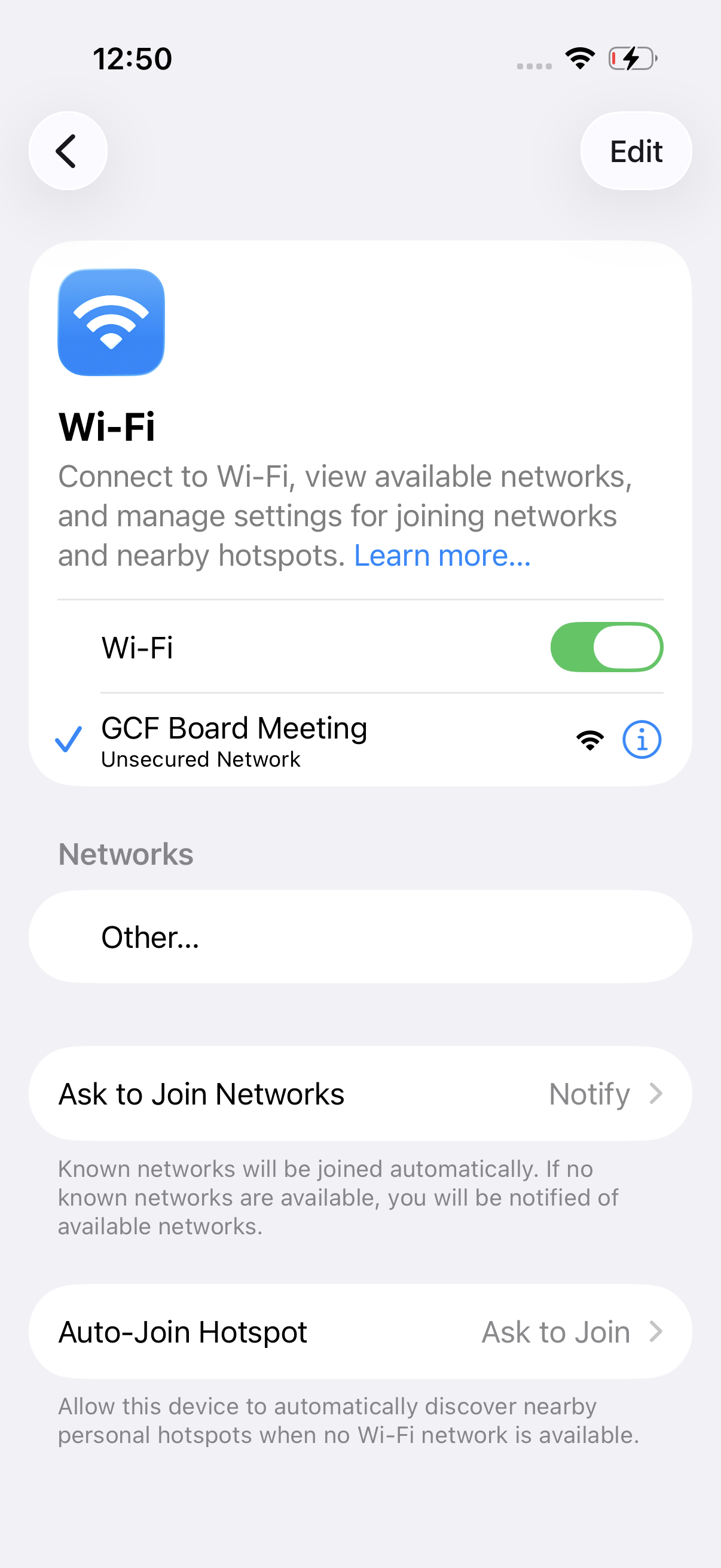
Go to Settings › Wi-Fi. Under the list of available networks, tap "GCF Board Meeting".
Check the name: pick "GCF Board Meeting" – not "GCF Visitor" or "GCF BYOD".
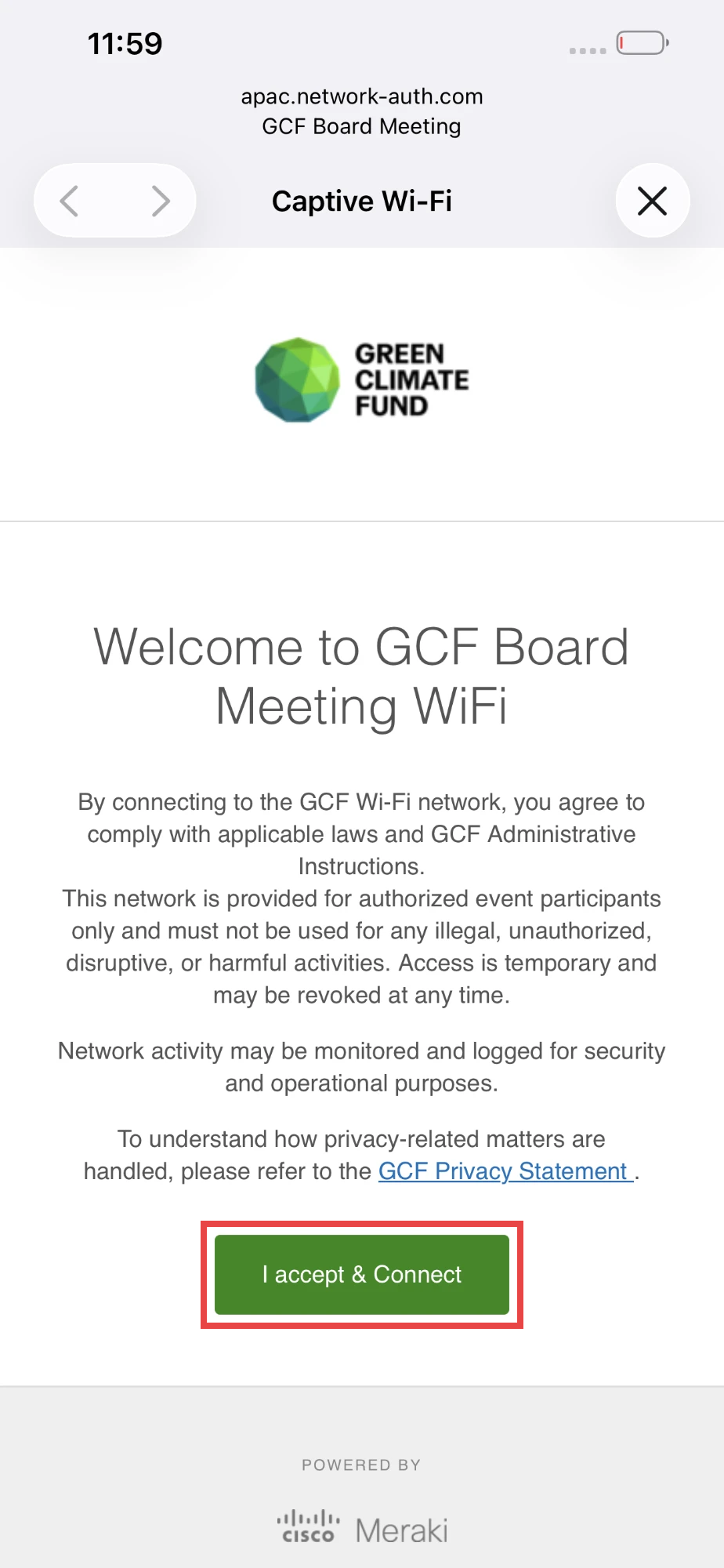
A Captive Wi-Fi window will pop up automatically. Read the terms of use, then tap "I accept & Connect" to proceed.
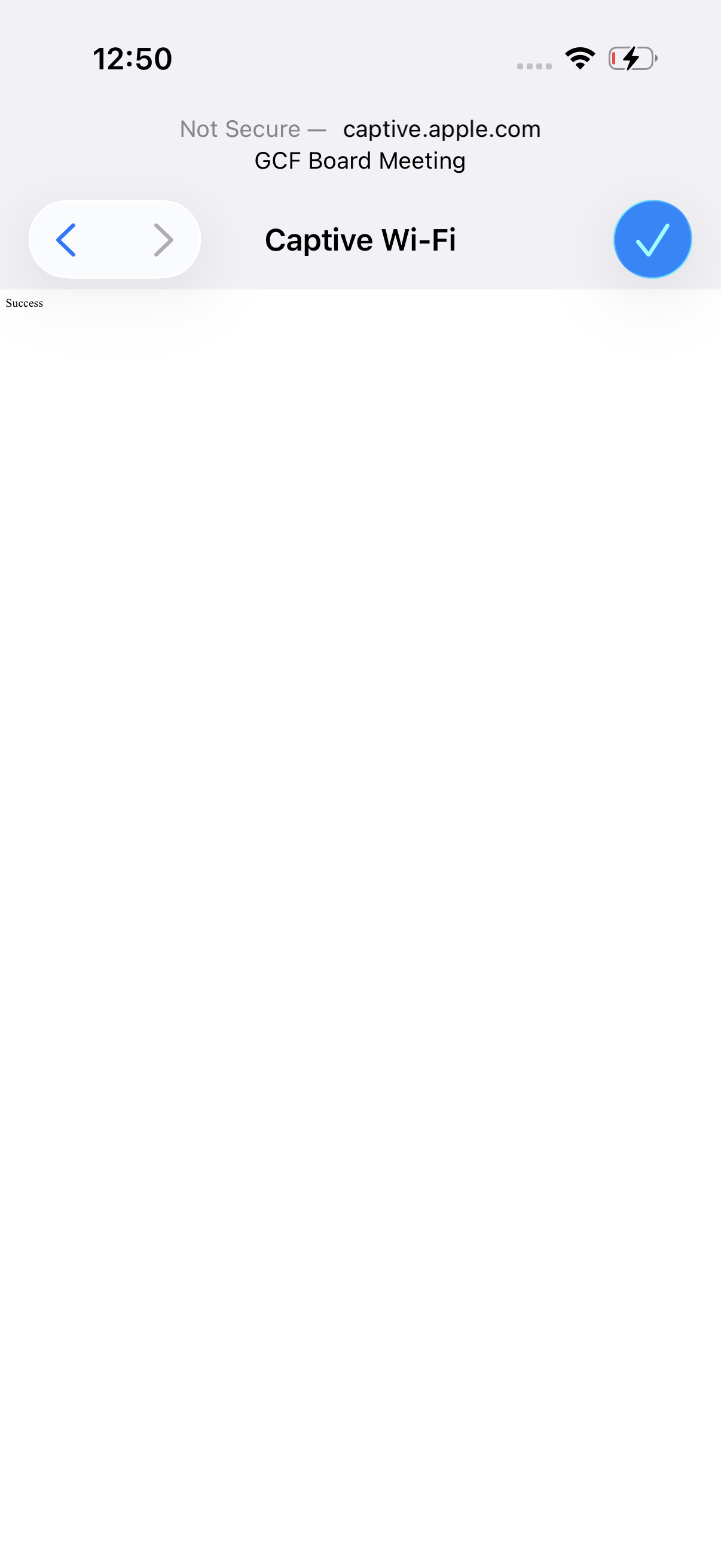
The page will show "Success". Tap the blue checkmark (✓) button at the top-right corner to dismiss the window.
You will return to Wi-Fi settings. "GCF Board Meeting" will appear at the top with a blue checkmark – confirming you are connected and ready to browse!
Seeing "Unsecured Network"? That's expected – the meeting network has no password so guests can join easily.
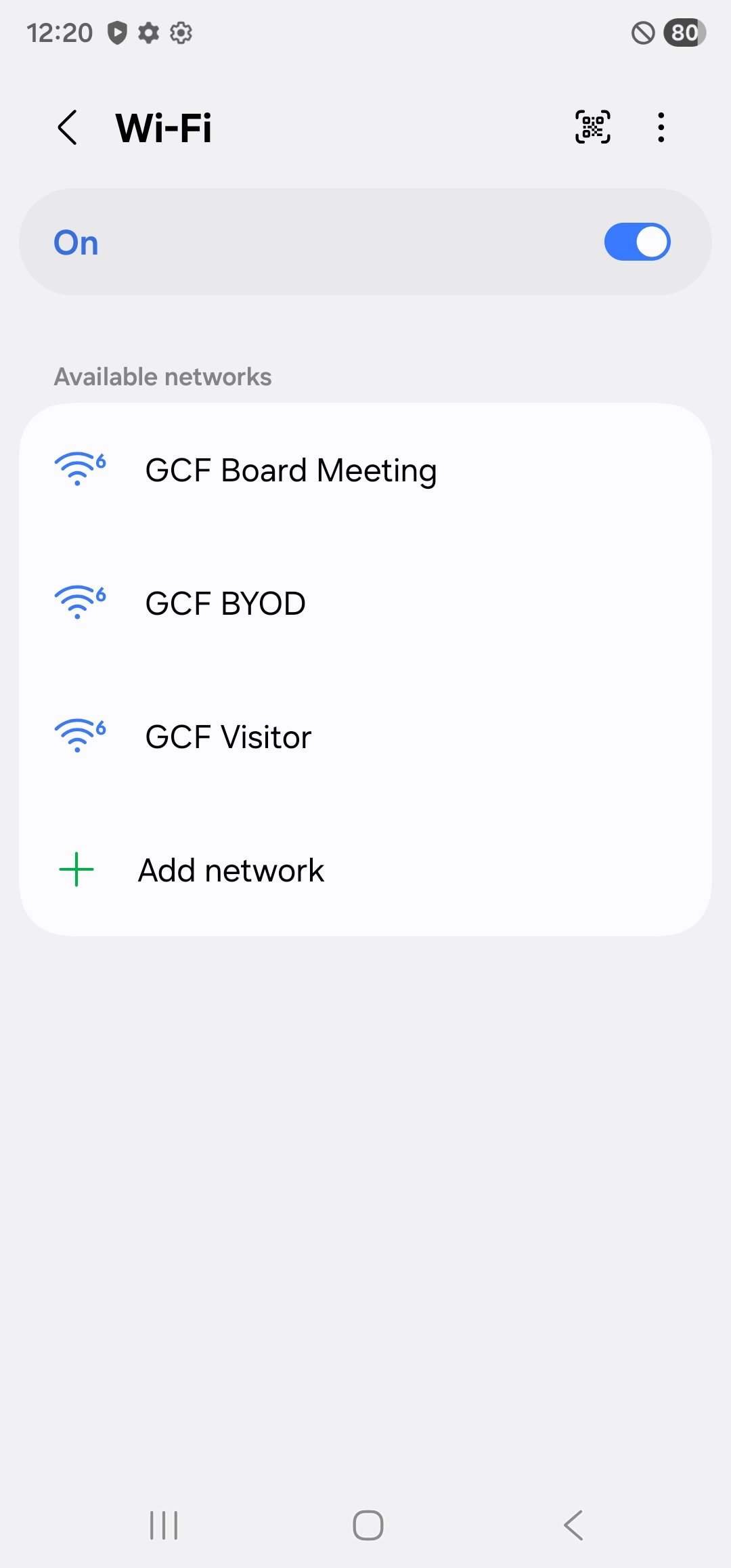
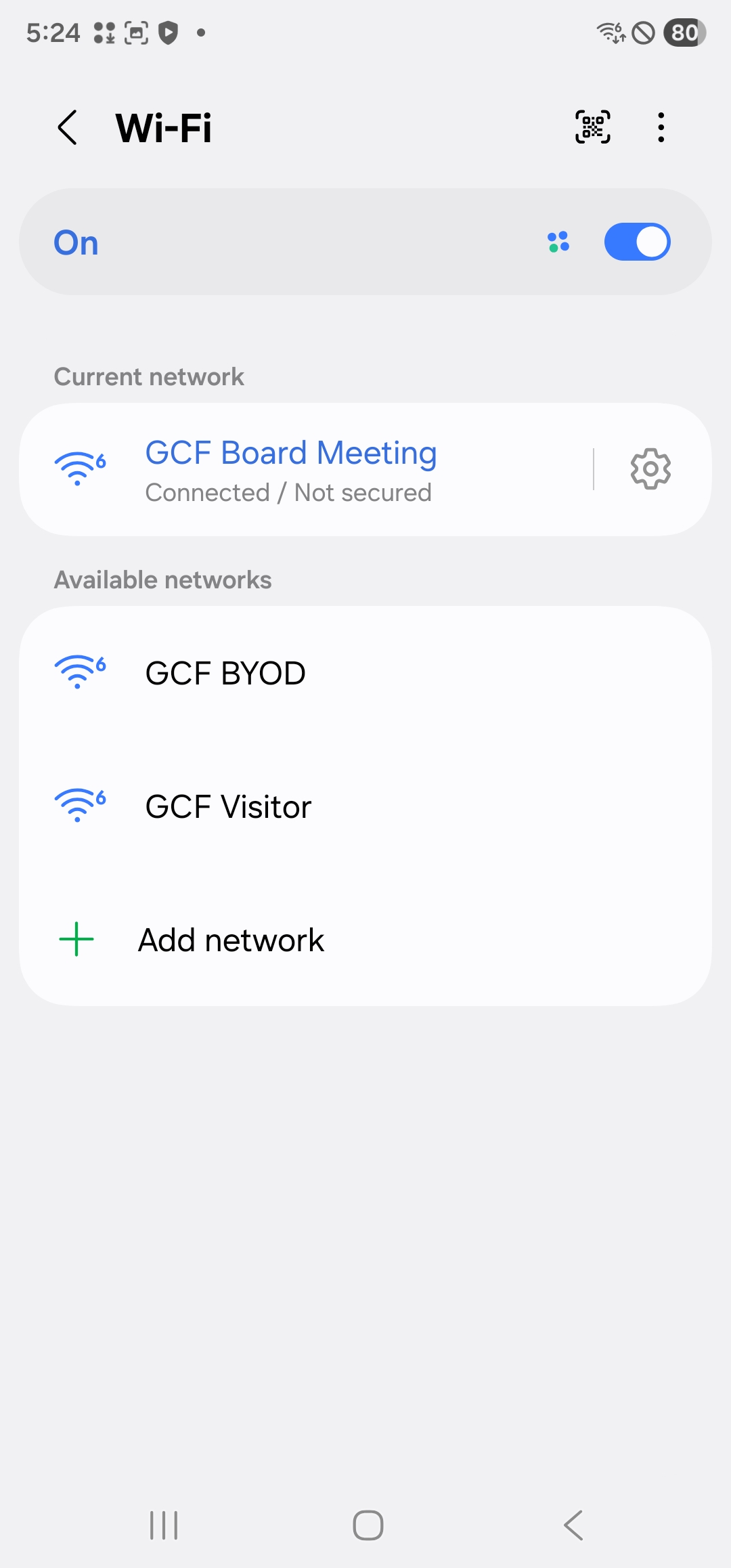
Open Settings › Connections › Wi-Fi. Under "Available networks", tap "GCF Board Meeting".
Check the name: pick "GCF Board Meeting" – not "GCF Visitor" or "GCF BYOD".
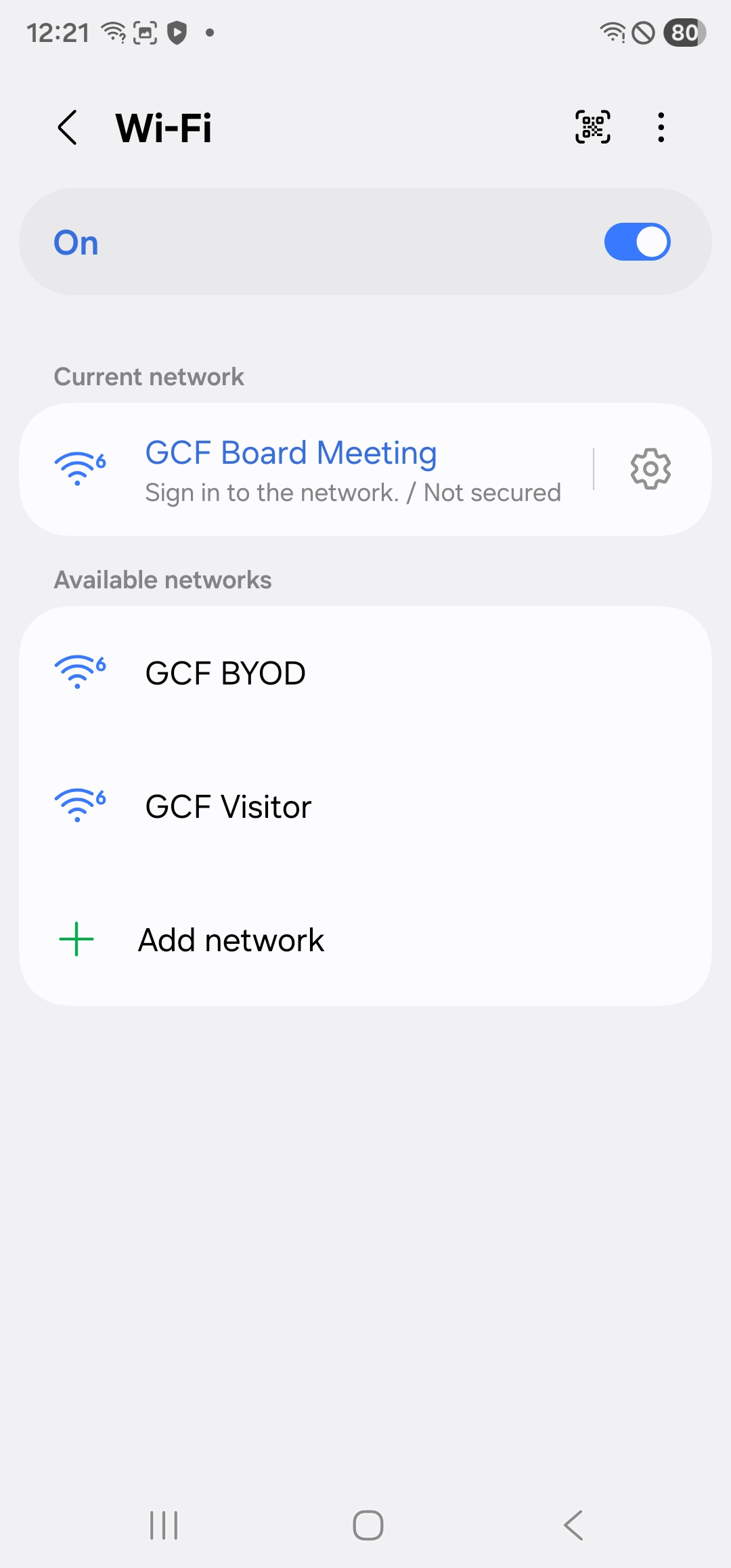
The network moves to "Current network" and shows "Sign in to the network." Tap the network entry to open the sign-in page.
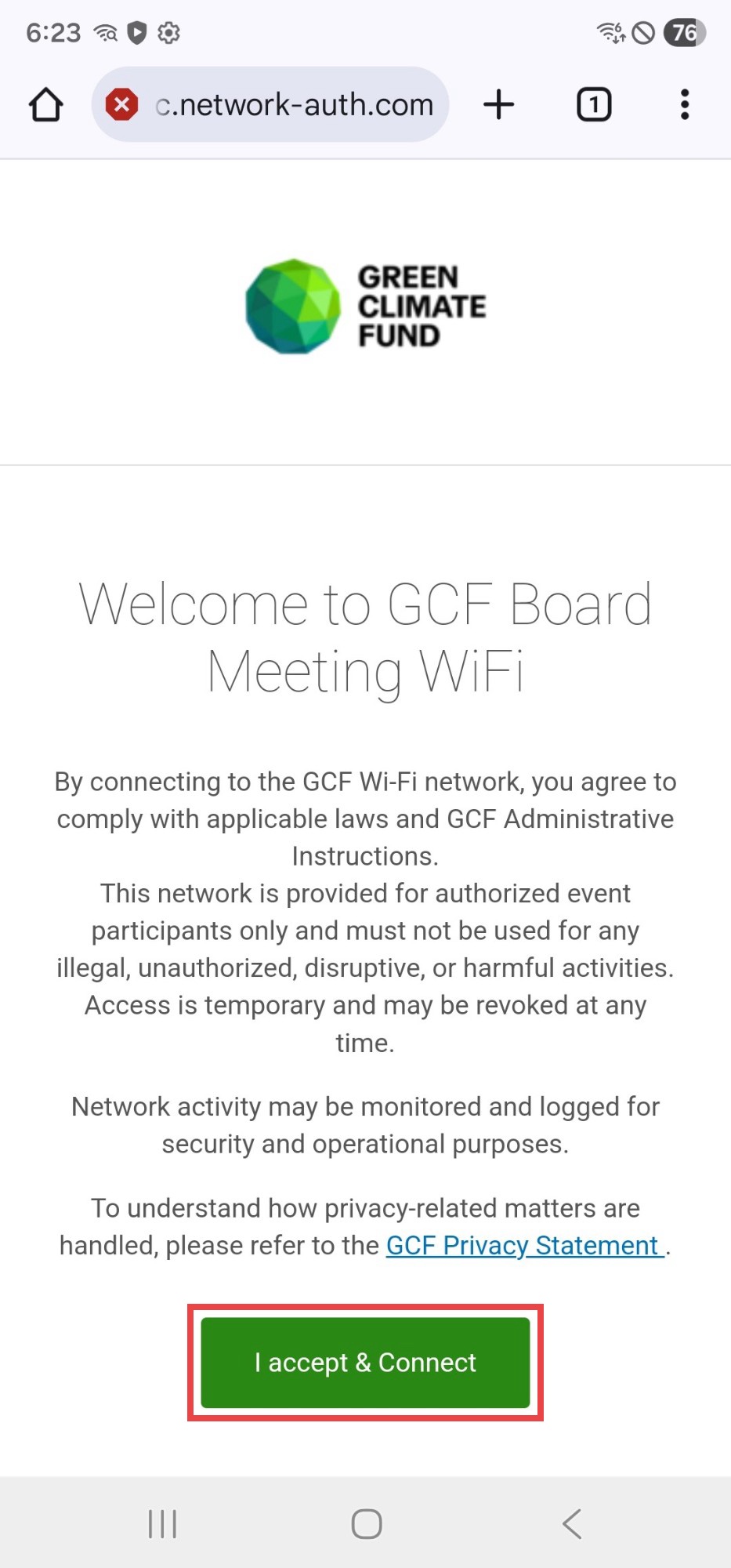
Your browser opens the GCF Board Meeting welcome page. Read the terms of use, then tap "I accept & Connect" to complete the connection.
You will return to Wi-Fi settings where "GCF Board Meeting" shows "Connected / Not secured". You are now online and ready to browse!
Seeing "Not secured"? That's expected – the meeting network has no password so guests can join easily.
Welcome page didn't open?
- Open your web browser and go to neverssl.com – you'll be taken to the welcome page.
- Pause any VPN until you've accepted the terms, then try again.
- Make sure you joined GCF Board Meeting, not GCF Visitor or GCF BYOD.
- Still stuck? "Forget" GCF Board Meeting in your Wi-Fi settings and join it again.
Need a hand?
The IT Service Desk is happy to help you get connected: